
The Layers and Properties panes look different now, and they work differently, too.
We rebuilt how you navigate between roof segments, reorganized where design layers live, and made the panes movable so you can customize your workspace.
The interface is new, but it’s intuitive. And it should accommodate your preferred workflow, whether you’re managing 20-segment commercial projects or cranking through residential PrelimDesigns.
What used to take four clicks now takes one. Faster navigation. Less scrolling. More control.
Why We Made These Changes
Not everyone designs the same way. Some prefer menus on the right. Some want everything collapsed to maximize screen space. And you should have the flexibility to design how you want!
Over the last 10 months, we’ve been focused on building features that save time: new trees, AI roof edge classification, improved roof sketching, fit-to-LiDAR. Now we’re applying that same philosophy to how you interact with the software itself.
The old nested layer structure required too much expanding, collapsing, and hunting through menus, especially on projects with multiple roof segments. We rebuilt it to give you more control over your workspace and faster access to the tools you use most.
What Changed
1. ➗ Layers tree split into top and bottom sections
What changed: The Layers tree is now organized into two sections. The top section contains all reference layers (maps, LiDAR, Google 3D, trees, rulers, occluders, animations) along with all your roof segments. The bottom section contains design Properties (outlines, keepouts, shade, arrays) plus an overview tab.
How it works: Instead of Properties changing every time you select a new segment, you can now stay within a specific property—like keepouts—while switching between segments. This is especially helpful on projects with many roof segments. Less scrolling, better visibility, and you can focus on one task at a time.
All the tools inside these properties are the same familiar tools you’re already used to.
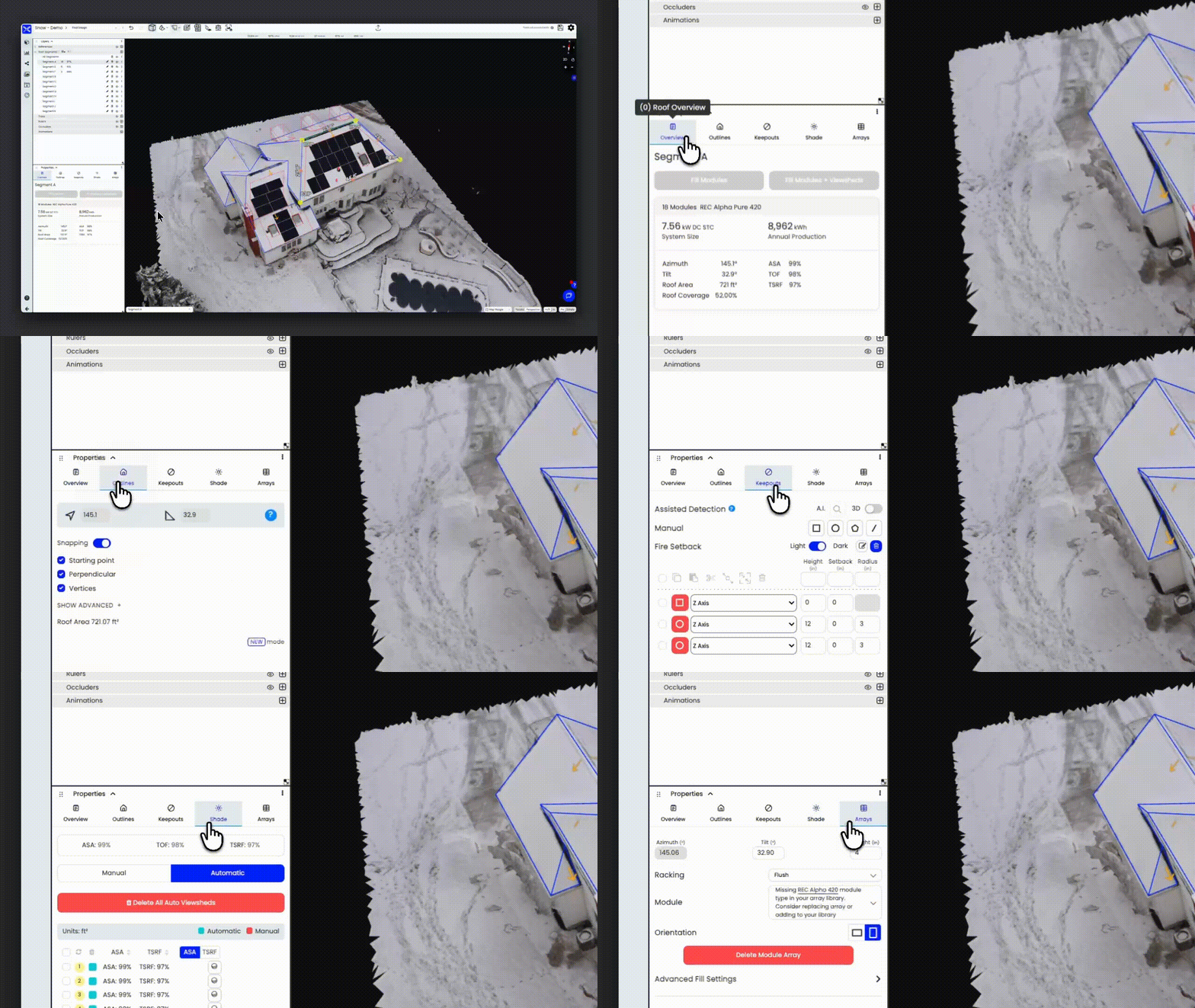
2. 📑 Tabs with keyboard shortcuts
What changed: Roof segment controls (Overview, Outlines, Keepouts, Shade, Arrays) are now tabs instead of nested child layers.
How it works: Use hotkeys 0-1-2-3-4 to jump between tabs automatically. What used to take four clicks (expand segment, find property, click property, repeat for the next segment) now takes just one.
3. 📐 Movable and resizable panes
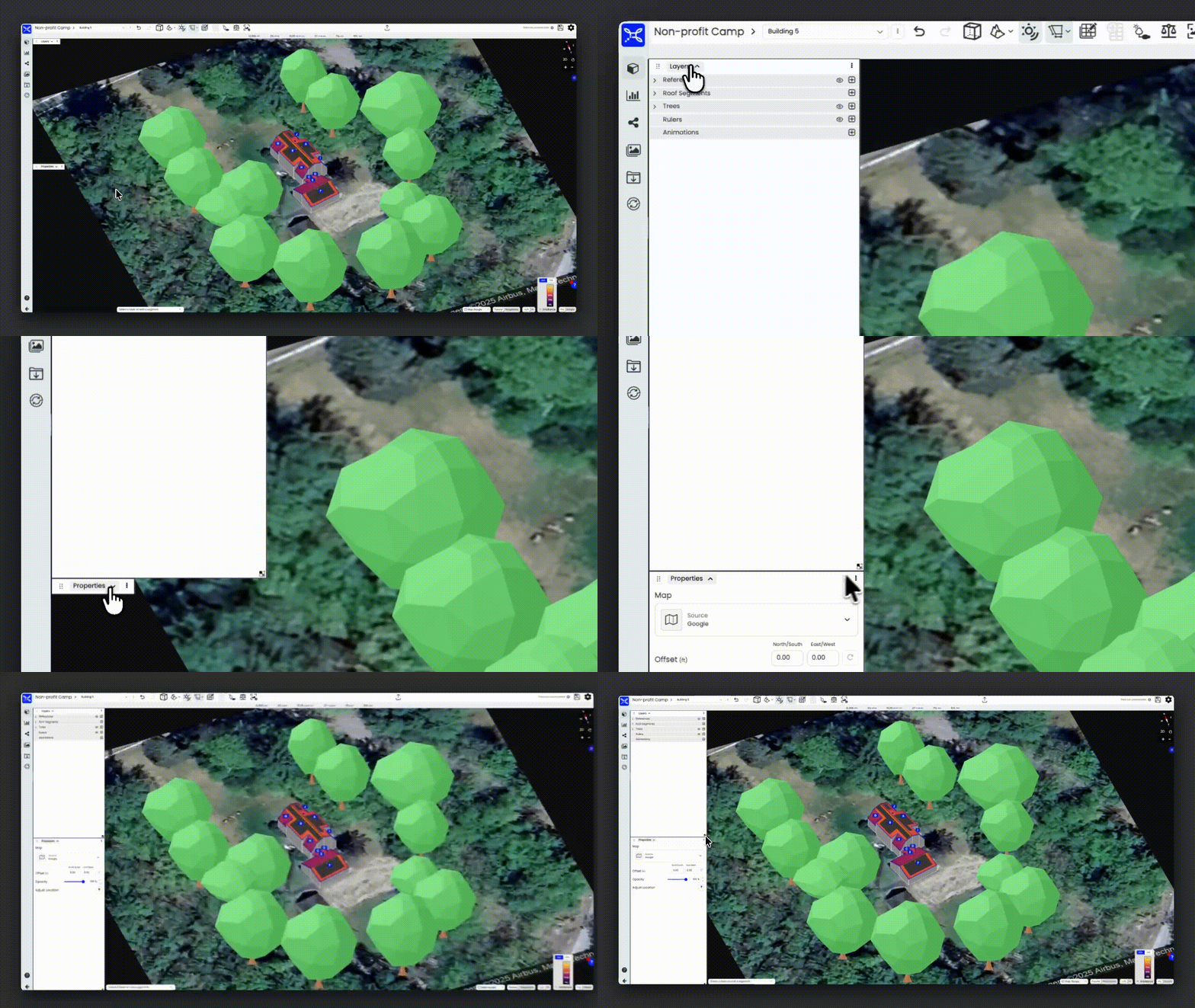
What changed: You can now reposition and resize the top and bottom sections of the Layers tree. Snap them to edges or float them wherever works best.
How it works: Arrange panels where you want within the 3D scene. Save your layout or reset it at any time. This is especially useful if you’re working on different screen sizes or embedding Scanifly in other software.
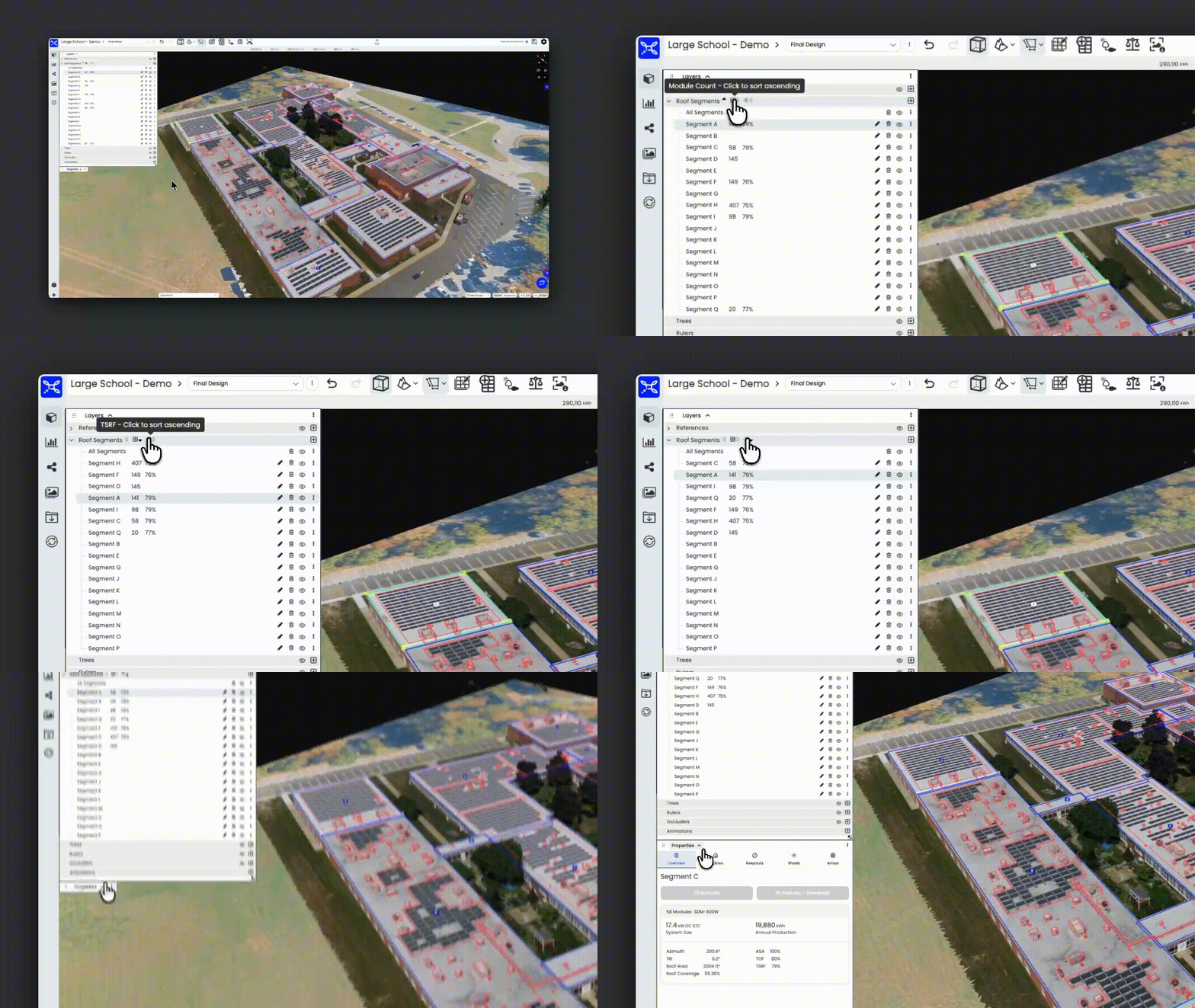
4. 🔍 Sort roof segments
What changed: New sorting options for roof segments—alphabetically, by module count, or by TSRF, in ascending or descending order.
How it works: When working on projects with multiple roof segments, sort by highest TSRF or most modules to prioritize which segments to tackle first.
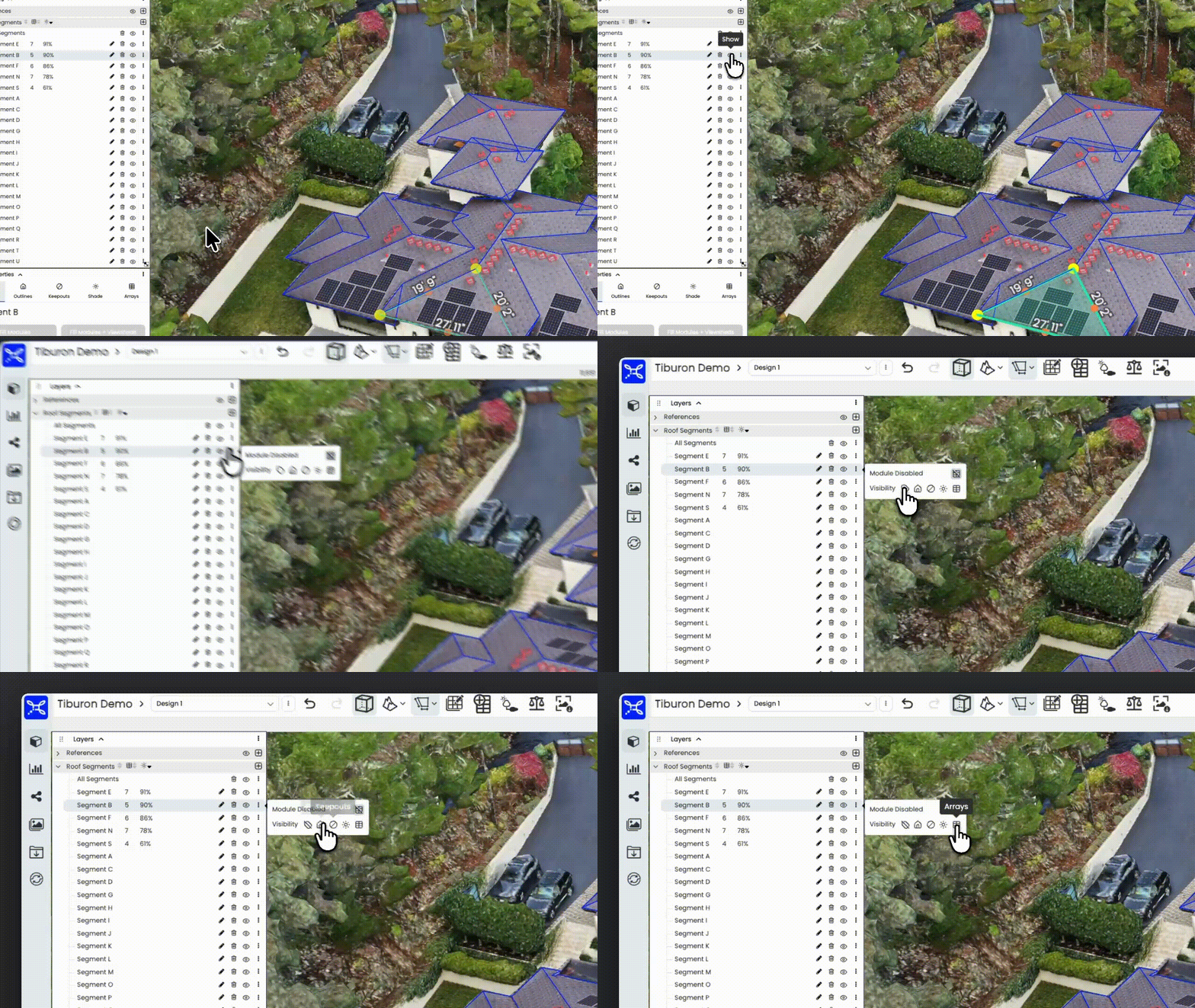
5. 👁️ Eye icons for visibility
What changed: Visibility toggles now use eye icons instead of checkmarks and have been moved into a dedicated section.
How it works: Same functionality, but with clearer icons that match standard design software conventions.
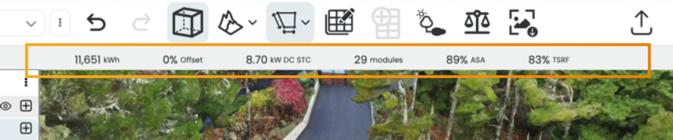
6. 📊 Persistent design overview header
What changed: Design information (module count, system size, TSRF) now appears in a compact header at the top instead of a large block in the properties panel.
How it works: Key project stats are always visible without taking up significant workspace.
Tutorial Video
Our Lead Trainer, Daniel Castano, put together a comprehensive walkthrough of the updated layers tree. Watch it below, or find it in the Resource Center inside the software.
Looking Ahead
We’re continuing to invest in UI and UX improvements with every new feature and product we release. Our goal is to build the most innovative products in solar design and home electrification, but innovation isn’t as impactful if the software slows you down or feels clunky to use.
We want to build products that are lovable and intuitive. Products that help you work faster without getting in your way.
This update is part of that commitment. More refinements are coming soon!
Questions or feedback? Contact our support team at hello@scanifly.com or book a demo here.