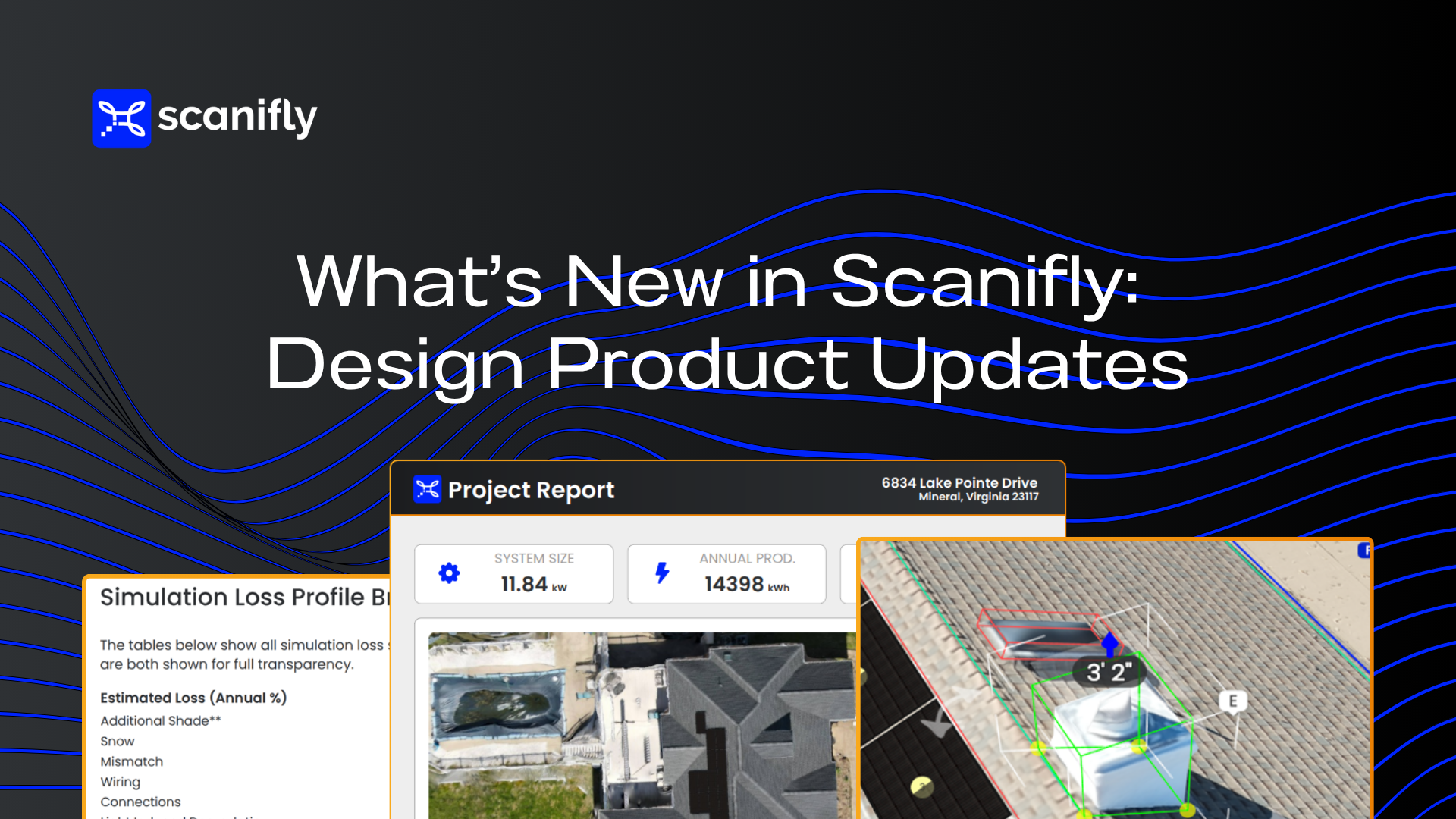
The best solar designs begin by capturing the reality on-site and modeling it accurately: the roof planes, the obstructions, the trees, and the shade they cast. That photorealistic 3D model is the foundation for every design decision that follows.
These latest releases are about making it easier to use, share, and analyze that data once you have it.
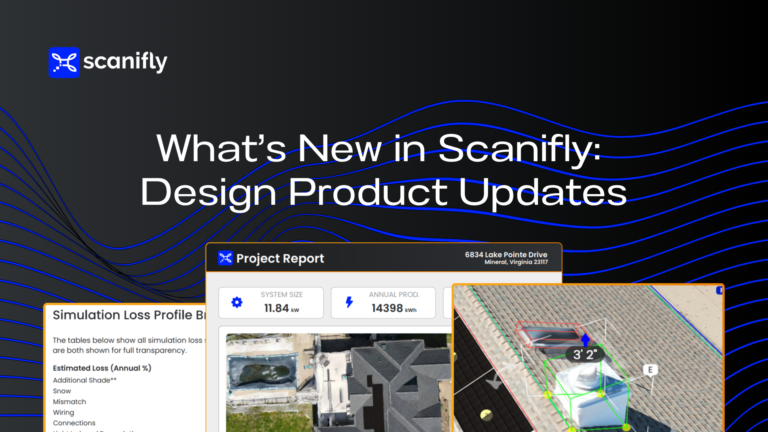
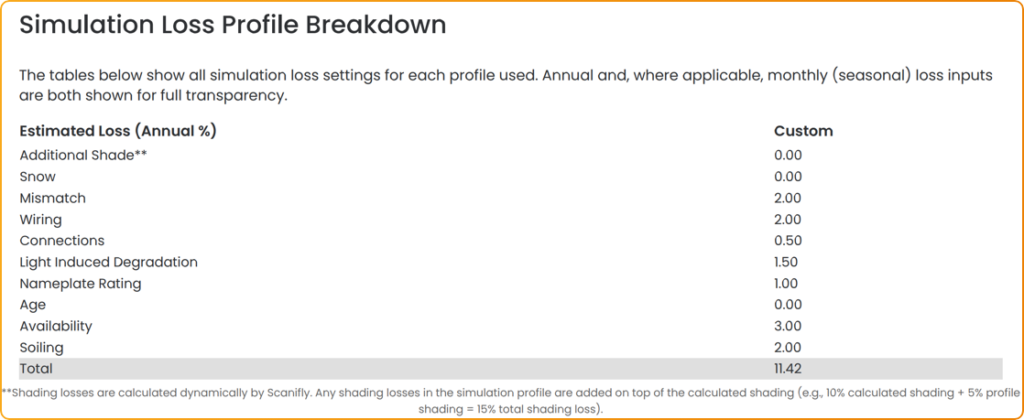
Keepout presets now carry default heights, and you can rotate them directly in the 3D scene. You can place twice as many Occluders per design and apply them to Google 3D and LiDAR layers, so tree removal scenarios work on more of your projects. Shading reports are more comprehensive, with a simulation loss profile breakdown and monthly loss tables.
We also spruced up the Reseller and Admin settings so you can shape the environment your own users and customers work in, including hiding the Project Report PDF or the Finalize button when they don’t fit your workflow.
What We Shipped
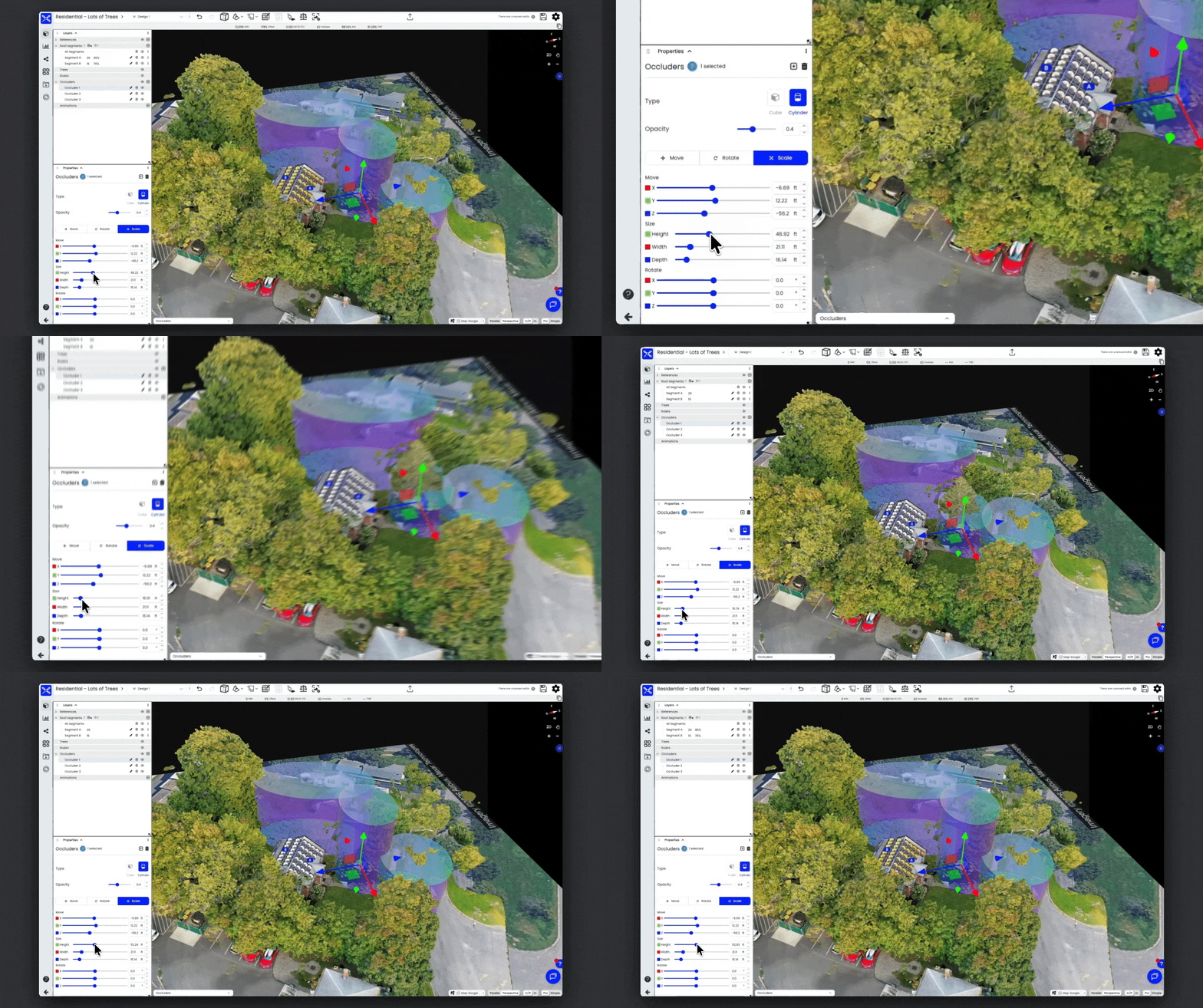
Occluders, Occluders, and more Occluders
What changed: You can now place up to 16 occluders per design, double the previous limit of 8. Occluders can also be placed on Google 3D and LiDAR layers, not just the drone photogrammetry mesh.
How it works: Occluders remove objects from the 3D scene so you can model the site without them, most often simulating tree removal. This gives you room to manipulate a heavily wooded lot, and Google 3D and LiDAR support bring those same scenarios to remote datasets that were captured before a tree was taken down or vegetation changed.
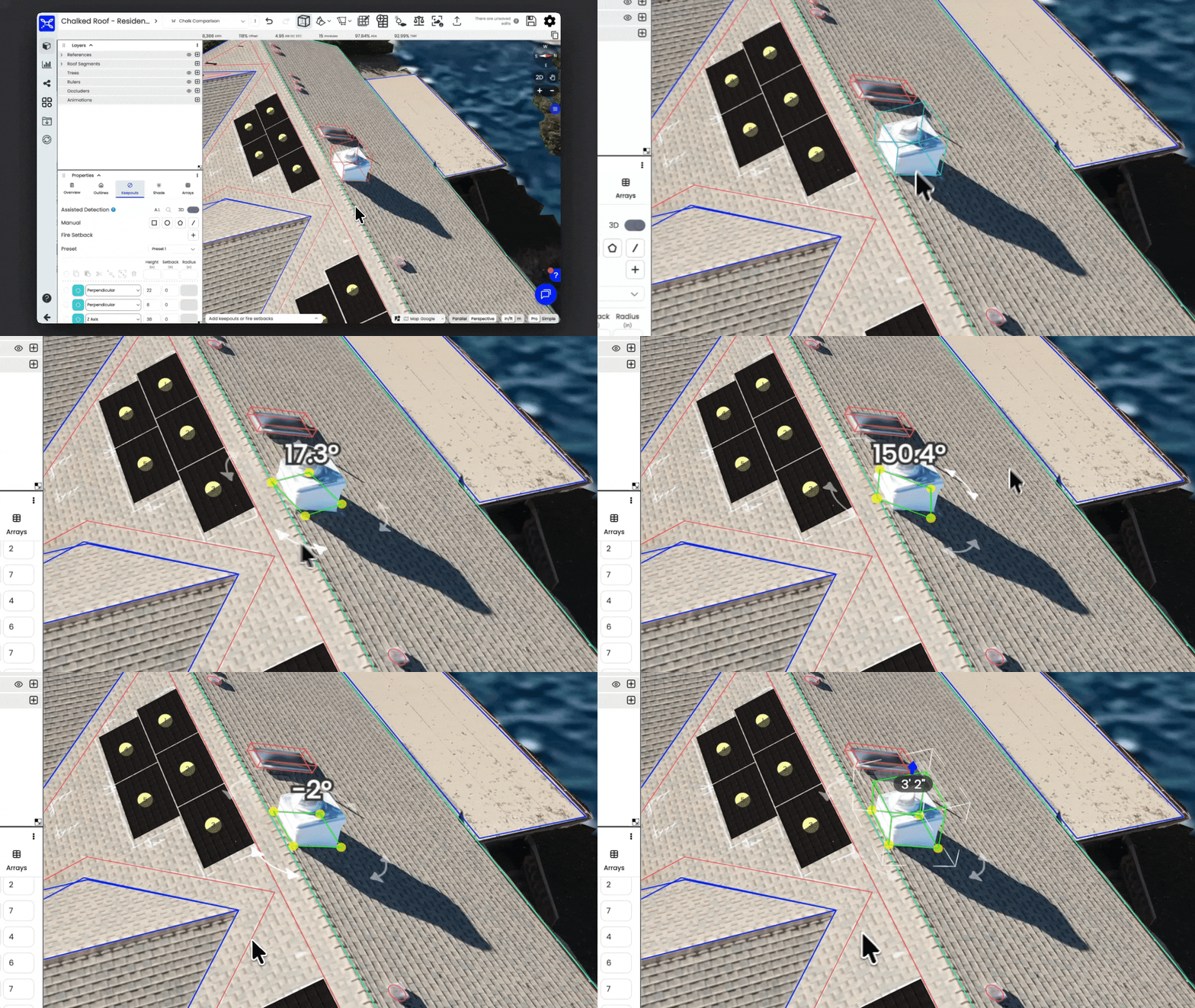
Keepouts: faster setup, easier editing
What changed: Keepout presets now come with default height settings (in the Setbacks section of Company settings), and you can easily move and rotate Keepouts directly in the 3D scene.
How it works: Set your default heights for each type of Keepout to reduce clicks during the design process. When a Keepout needs a different orientation, select it in the 3D scene and simply rotate it.
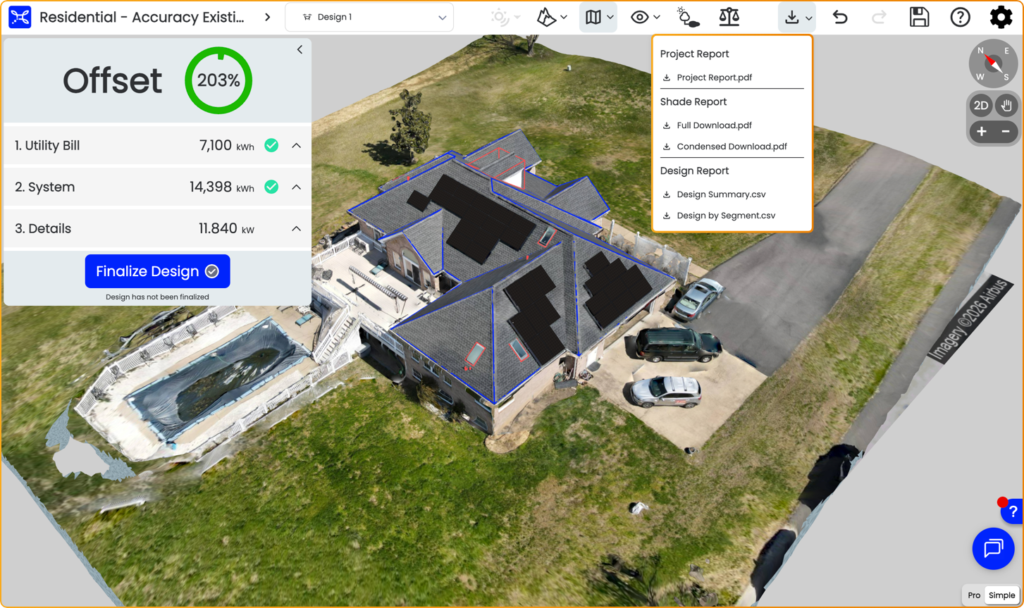
Project Report PDFs generated from inside the design space
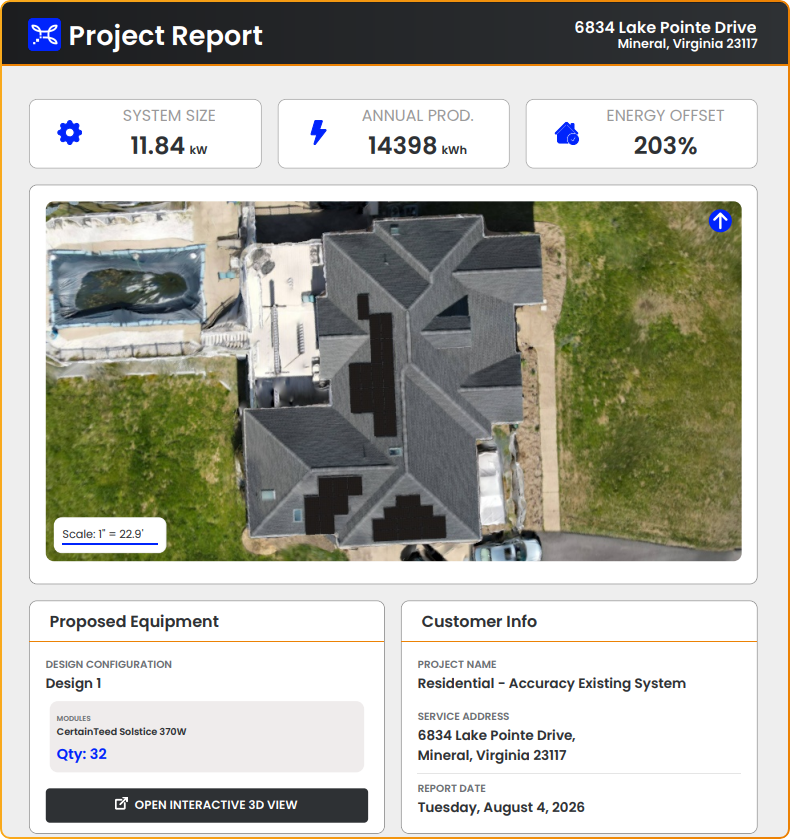
What changed: You can now generate a Project Report PDF for any project directly inside the design environment, in both Simple and Pro Design.
How it works: Click the Download icon from the top nav bar to generate the report from inside the design space, and you get a clean PDF summary of the project, ready to hand to a customer, without switching tabs.
More comprehensive Shade Reports
What changed: Shading reports now include a Simulation Loss Profile Breakdown and monthly Calculated Shading Loss tables.
How it works: The report separates out where simulation losses are coming from and lays out losses month by month for a more detailed, comprehensive look at the project’s shading analysis.
Improved Reseller and Admin Settings
If you are a Scanifly Reseller or Admin, you can now hide the Project Report PDF and the Finalize button in Simple Design, hide the top utilization banner, and (for embedded design partners) hide the design create/edit/delete buttons with a URL parameter. Reach out if you want help turning any of these on!
Frequently Asked Questions
Can Scanifly model what happens if a tree is removed?
Yes. Occluders remove objects from the 3D scene so you can run shading and production analysis on the site without them. You can place up to 16 occluders per project, and they work on drone photogrammetry, Google 3D, and LiDAR layers.
What is included in a Scanifly shade report?
Scanifly shading reports include a Simulation Loss Profile Breakdown and monthly Calculated Shading Loss tables. Together, they show where simulation losses come from and how shading loss changes across the year.
Can I generate a solar project report without leaving the design?
Yes. Click the Download icon in the top nav bar of the design space to generate a Project Report PDF. It works in both Simple Design and Pro Design.
What are Keepouts in Scanifly?
Keepouts are how Scanifly identifies and outlines roof obstructions such as vent pipes, chimneys, and dormers. Presets now include default height settings, and you can move and rotate keepouts directly in the 3D scene.